主题
Claude 桌面版
通过填写 Gateway 地址、API Key、Model ID,把 Claude 桌面 App 接到 AiCodeCat。
Claude 走 Anthropic 协议,Gateway base URL 填 https://aicode.cat,不要加 /v1。
先到 创建 API Key 拿一把 Key。
macOS / Linux
需要能访问外网下载 Claude App。Git 如未安装,macOS 可用 Homebrew:brew install git。
1. 下载 Claude App
打开 https://claude.com/download。若打开后先出现登录页,登录即可,再按下面配置。
2. 启用 Developer Mode
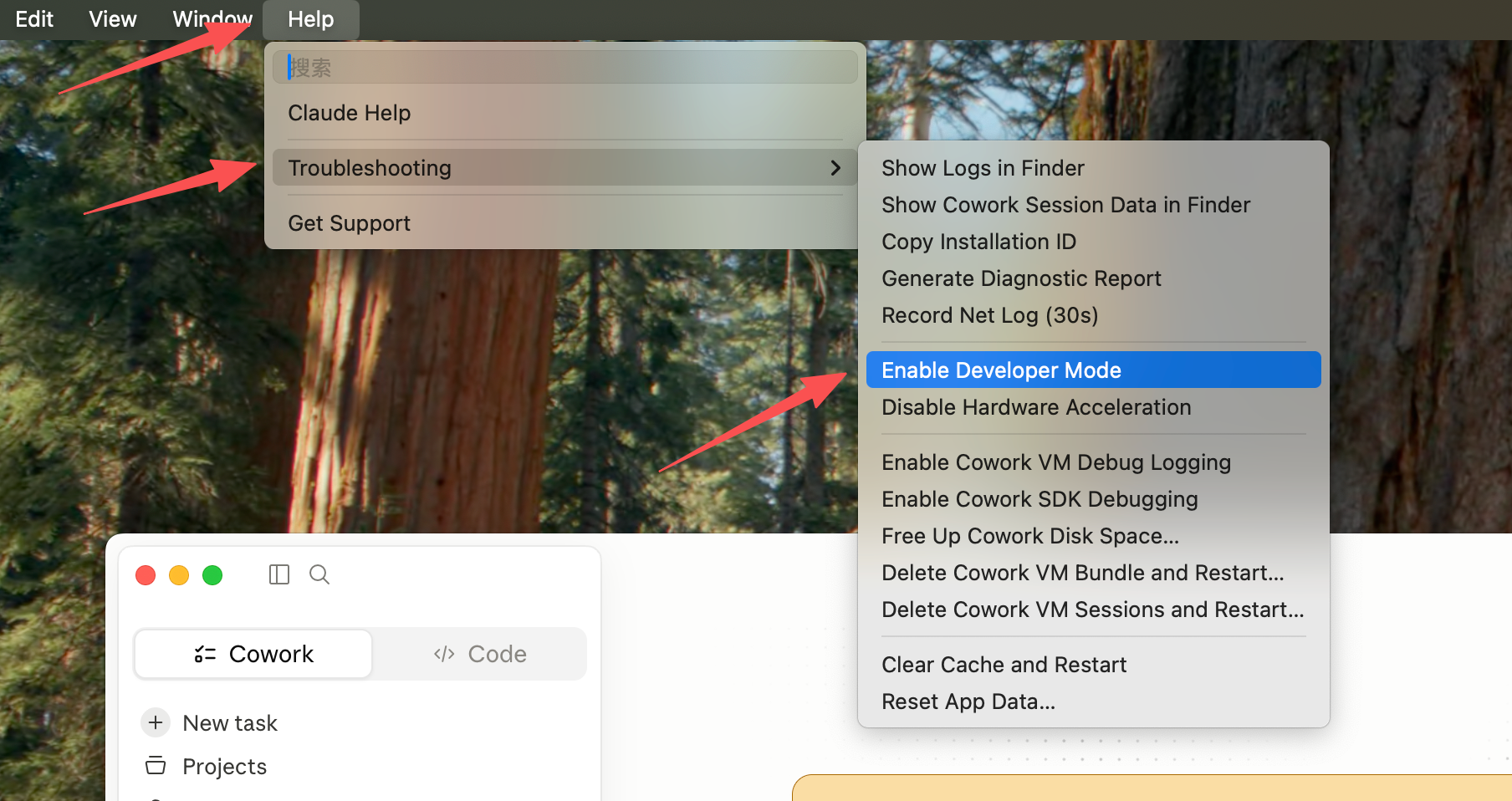
安装后打开 Claude App。点屏幕左上角 Help → Troubleshooting → Enable Developer Mode,弹窗选 Enable。
3. 打开第三方推理配置
软件会重启。重启后点左上角 Developer → Configure Third-Party Inference。
4. 填写 Gateway 地址和 Key
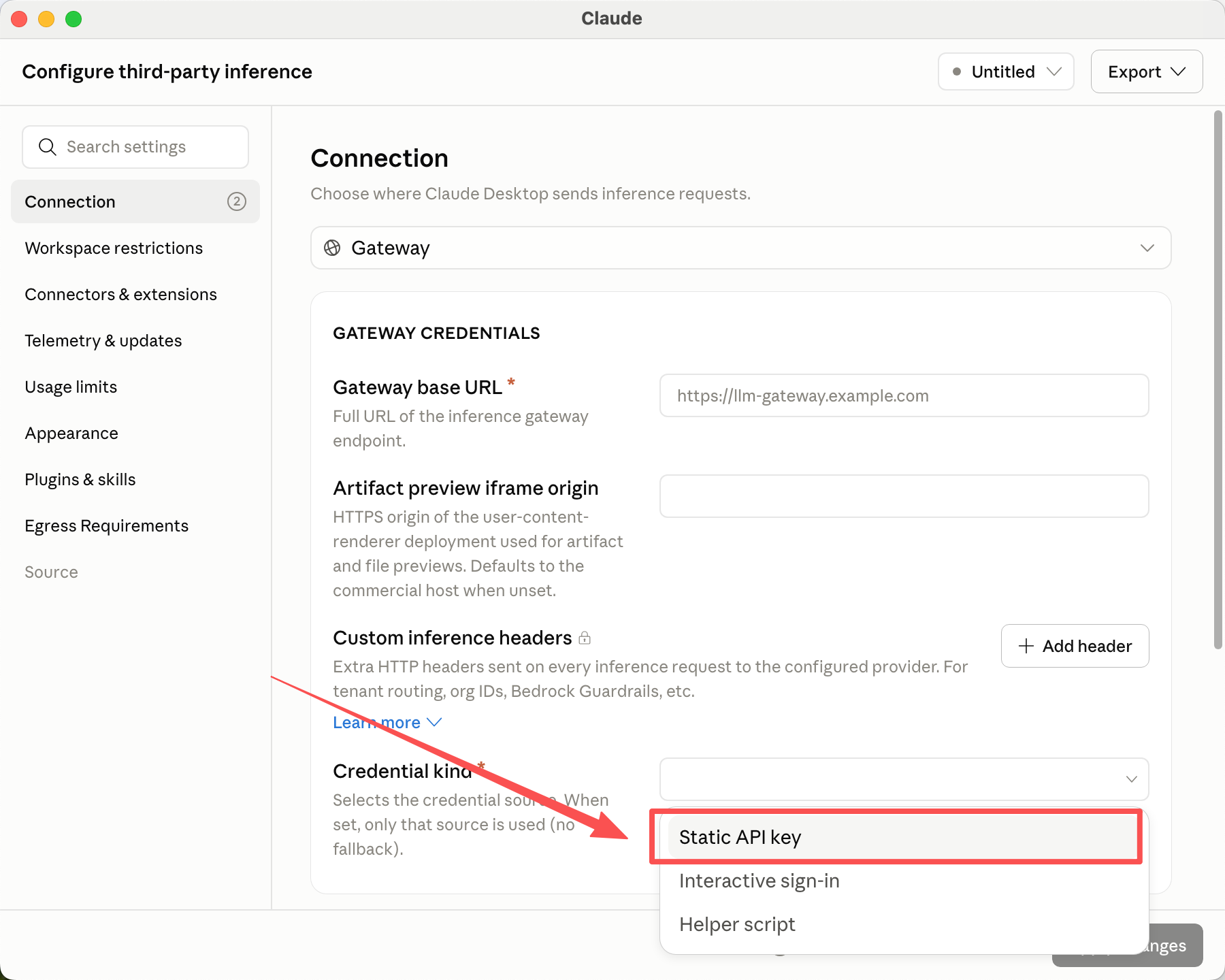
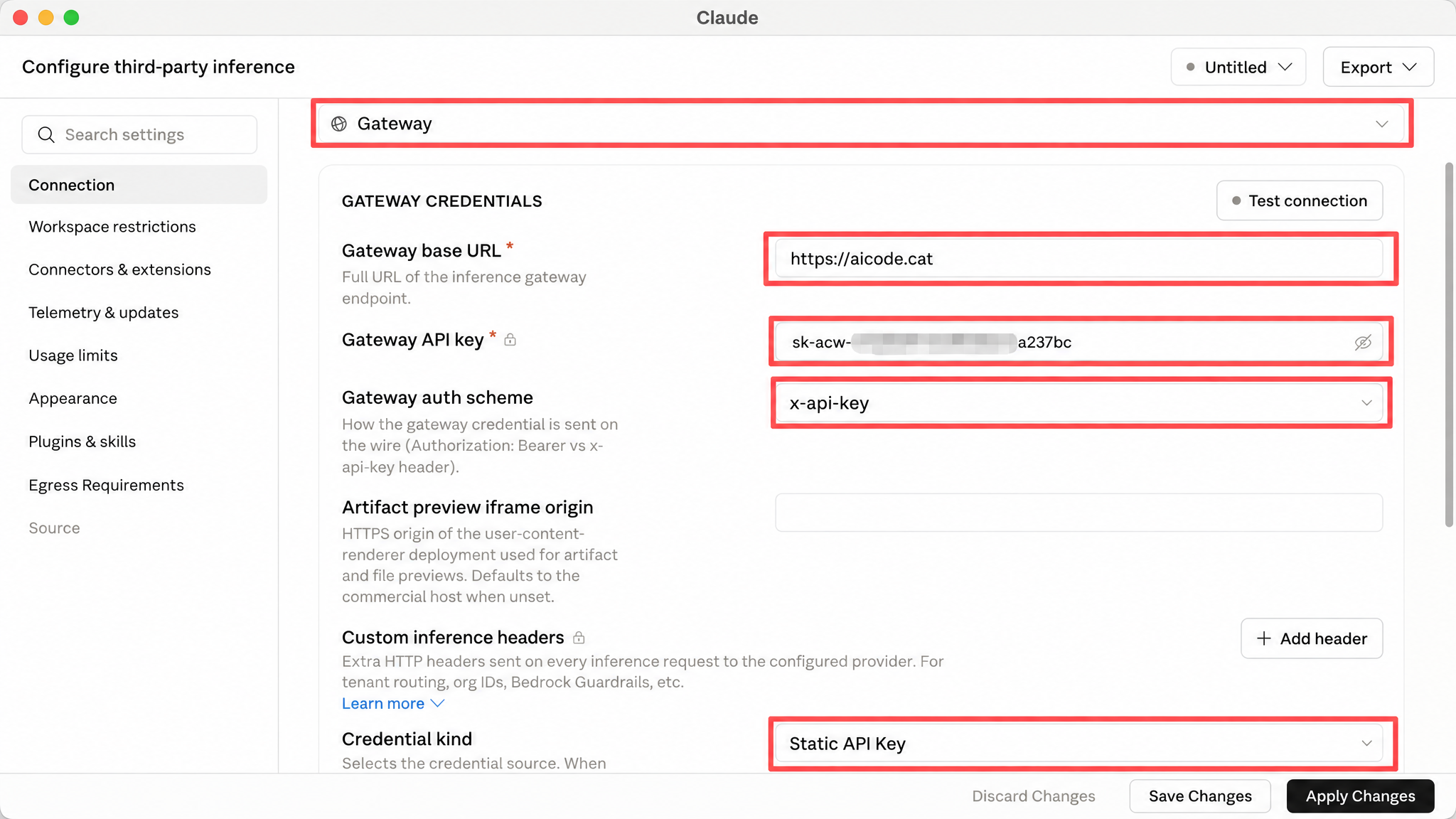
- Credential kind 选 Static API key
- Gateway auth scheme 选 x-api-key
- Gateway base URL 填
https://aicode.cat(不要/v1) - Gateway API key 填你在仪表盘创建的 Key
5. 添加模型
页面下滑到 Model list,点 Add。Model ID 以 主站控制台 为准,例如 claude-opus-4-6、claude-sonnet-4-6。Display name 用简写即可。
点 Apply Changes,提示时选 Save & Restart。
6. 测试
能正常回复即成功。失败先看 常见报错。
以下是 Windows
Windows
Windows 10/11。Git 未装时到 Git 官网 下载,安装向导一路确认即可。
1. 下载并安装 Claude App
https://claude.com/download,装完会自动打开。
2. 启用 Developer Mode
点左上角三条杠,Help → Troubleshooting → Enable Developer Mode,选 Enable。
3. 打开第三方推理配置
重启后点三条杠,Developer → Configure Third-Party Inference。
4. 填写 Gateway 地址和 Key
与 macOS 相同:
- Credential kind:Static API key
- Gateway auth scheme:x-api-key
- Gateway base URL:
https://aicode.cat(不要/v1) - Gateway API key:仪表盘里的 Key
5. 添加模型并测试
Model ID 以控制台为准。Apply locally / Apply Changes 后重启,发一句「回复 ok」能回即成功。